Deactivating Students
Classes & Students
Updated Apr 9, 2026
2 min read
Understand when to deactivate vs delete students in ReportRocket, how to manage students who have left, and the impact on existing report comments.
Deactivate vs. Delete
ReportRocket offers two ways to handle students who leave your class.
| Action | Effect | Reversible? |
|---|---|---|
| Deactivate | Hides student, keeps records | ✅ Yes |
| Delete | Removes student completely | ❌ No |
When to Deactivate
Deactivation is ideal when:
- Student transferred to another class
- Student left mid-term
- You need to keep records for compliance
- The student might return
How to Deactivate
- Open the student's profile
- Click "Deactivate Student"
- Confirm the action
Deactivated Students
- Don't appear in class lists
- Don't count toward quotas
- Reports are preserved
- Can be reactivated anytime
Reactivating
- Go to class settings
- Click "Show Deactivated"
- Find the student
- Click "Reactivate"
When to Delete
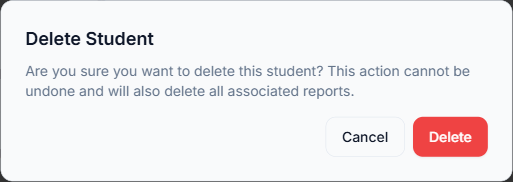
Deletion is appropriate when:
- Student was added by mistake
- You're cleaning up test data
- No records need preservation
How to Delete
- Open the student's profile
- Click "Delete Student"
- Type "DELETE" to confirm
- Student and all reports are permanently removed
School Policy Considerations
Check your school's data retention requirements before deleting. Many schools require:
- Retaining records for departed students
- End-of-year archival processes
- Compliance with state regulations
When in doubt, deactivate rather than delete.
Impact on Reports
Deactivated Students
Reports remain accessible to:
- The original teacher
- Any linked Review Packs
- School records (if applicable)
Deleted Students
All reports are permanently removed. This cannot be undone.
Next Steps
Tags:
deactivate
delete
students
remove
Was this article helpful?