Adding Students to Your Class
Add students individually with pronoun support, import via CSV upload, and learn about deactivating vs deleting students from your ReportRocket classes.
Adding Students to Your Class
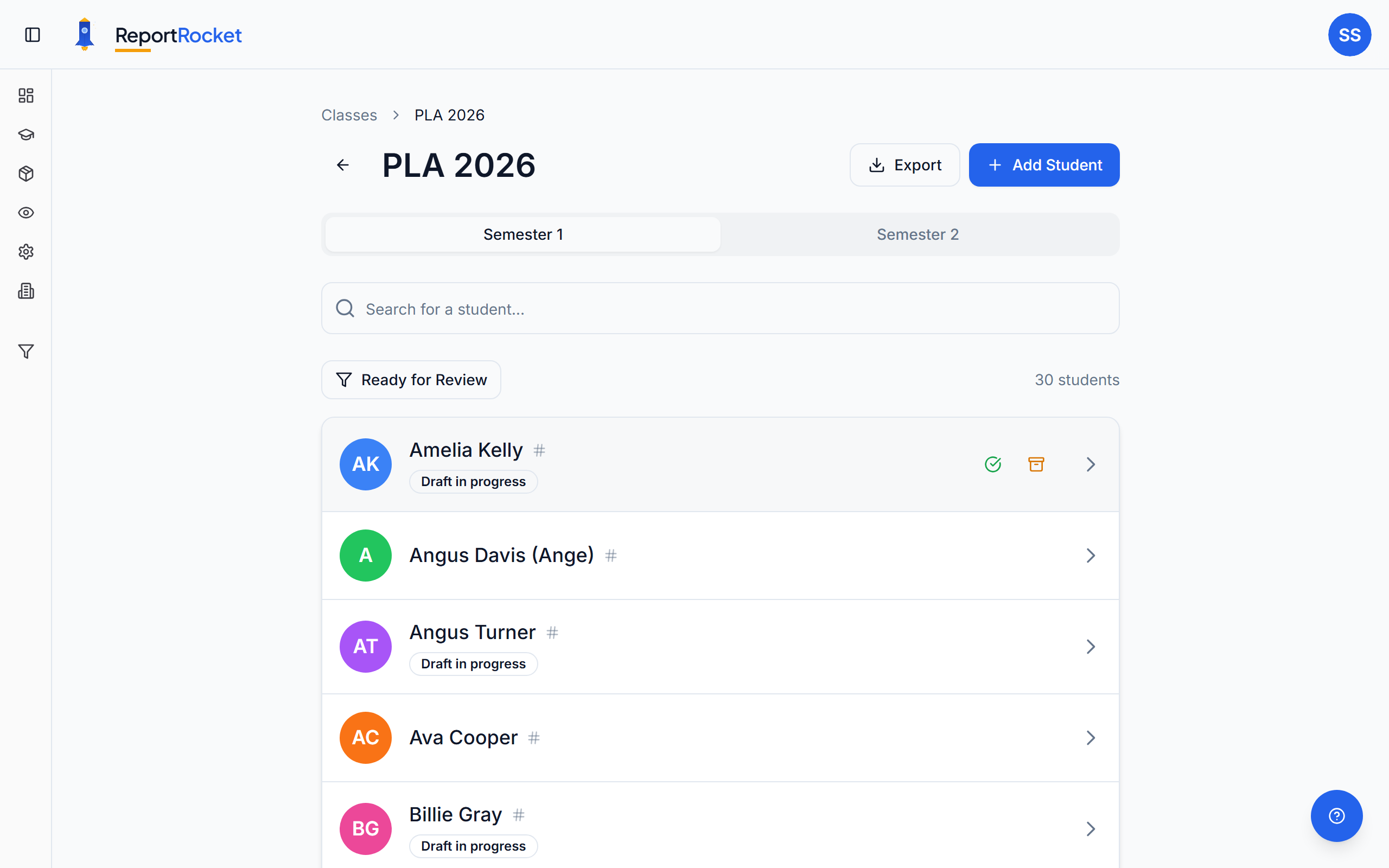
Once you have created a class, add your students so you can start generating report comments.
Add a Student
- Open your class from the Classes page
- Click "Add Student"
- Enter the student's name
- Select their pronouns (he/him, she/her, they/them)
- Optionally enter a preferred name (see below)
- Click "Save"
Pronouns
Pronouns are used by the AI to generate grammatically correct comments. Selecting the right pronouns ensures the generated text reads naturally.
Preferred Names
If your school has Two-Name Comments enabled (a school admin setting), you will see a Preferred Name field when adding or editing students.
- Enter the name the student goes by in the classroom (e.g. "Alex" for "Alexander")
- Leave it blank if the student uses their enrolled name
- The AI uses your style guide to determine how each name appears in generated comments
- Preferred names can also be set via CSV bulk upload using a
preferred_namecolumn
See Using preferred names for more details.
Deactivating vs. Deleting
Deactivate
For students who temporarily leave or transfer:
- Their data is preserved
- They stop counting toward your student pool
- You can reactivate them later
Delete
For permanently removing a student:
- All their report data is deleted
- This cannot be undone
- Use only when you are sure
See Deactivating students for more guidance.
Bulk Import
You can import students via CSV upload when creating or managing a class. Your CSV should include a name column (the student's full name), and optionally pronouns and preferred name.
Next Steps
Was this article helpful?