School Administrator Overview
Manage your school's ReportRocket account with the admin dashboard, usage tracking, role management, and school-wide oversight.
Your Admin Dashboard
As a school administrator, you have access to powerful oversight tools that help you manage ReportRocket across your school.
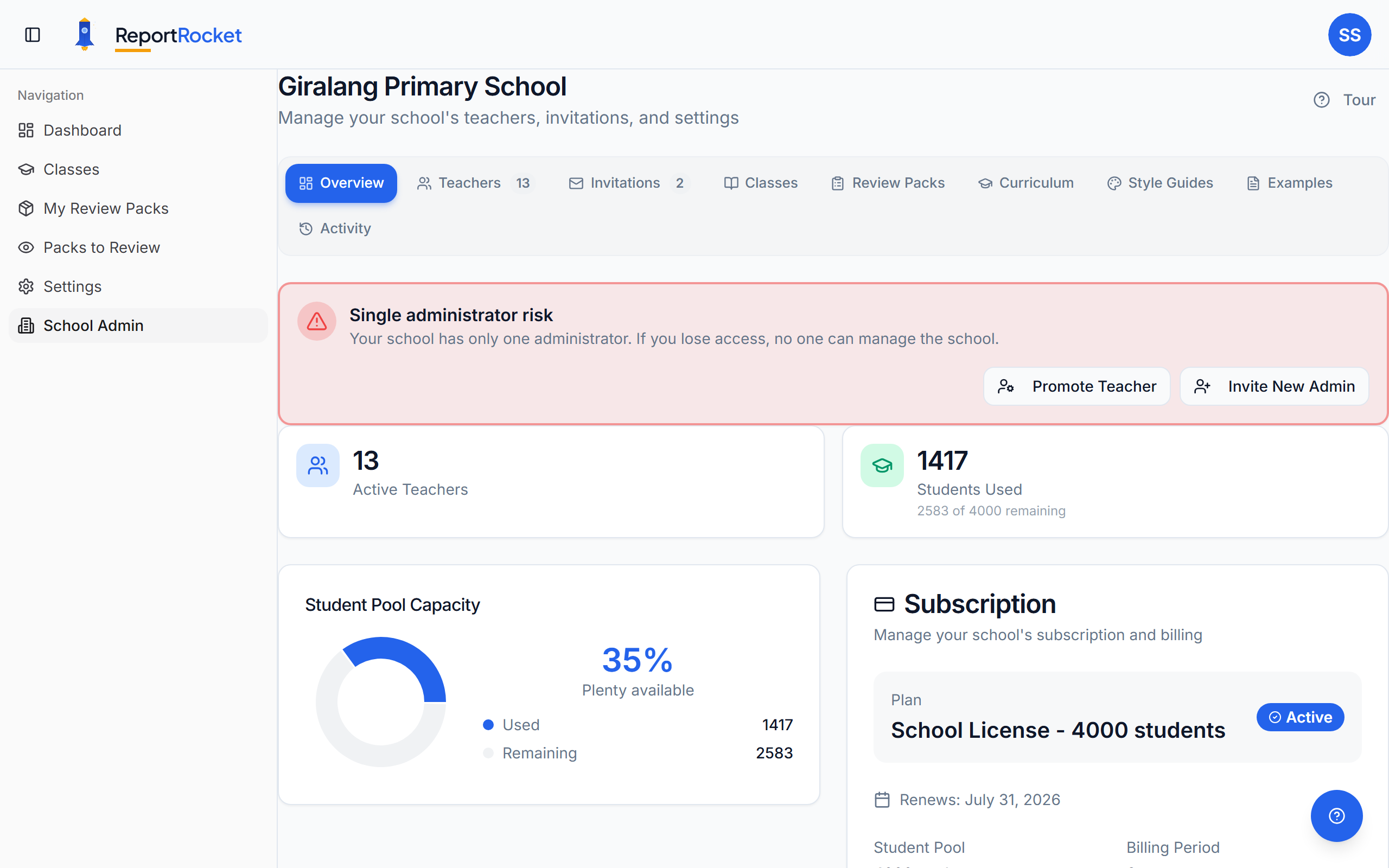
Accessing School Admin
Click School Admin in the sidebar. This option only appears if you have the Admin role.
Admin Tabs
Your admin section has the following tabs:
| Tab | What It Does |
|---|---|
| Overview | Quick stats, usage chart, subscription status, school settings |
| Teachers | View all members, manage roles, see pool usage, handle orphaned classes |
| Review Packs | School-wide view of all Review Packs with search, filter, and reassignment |
| Classes | Sortable table of all classes with grade, teacher, and student count |
| Invitations | Send individual or bulk invitations, manage pending invites |
| Activity | Audit trail of admin actions (role changes, settings updates, pack reassignments) |
| Curriculum | Manage school-wide curriculum subjects, categories, and criteria |
| Style Guides | Configure writing style guides for each year level |
| Examples | Provide example comments for the AI to learn from |
Overview Tab
Quick Stats
- Active teachers in your school
- Student pool usage vs allocation
- Visual usage chart showing pool distribution
Subscription Status
- Current licence tier and expiry date
- Quick links to upgrade or manage billing
School Settings
Two toggles available to admins:
- Two-Name Comments lets teachers record a preferred name alongside each student's legal name. The AI uses your style guide to decide how each name appears in generated comments.
- Restrict Reviewers limits Review Pack assignment to members with the Reviewer or Admin role. When disabled, any school member can be selected as a reviewer.
Teachers Tab
See every teacher linked to your school with:
- Name, email, and avatar
- Pool usage (students counted toward your licence)
- Current role (Admin, Reviewer, or Teacher)
- Sortable columns and search
Role Management
Promote or demote members via the three-dot menu on each row. See Managing roles and permissions for details.
Orphaned Classes
When a teacher leaves, their classes appear in an "Orphaned Classes" card at the top of the Teachers tab.
To reassign an orphaned class:
- Find the orphaned class in the card at the top of the Teachers tab
- Click the Reassign button next to the class
- Select a teacher from the dropdown
- The class and all its students transfer to the new teacher immediately
Classes Tab
View every class across the school in a sortable table with the following columns:
| Column | Description |
|---|---|
| Class | The class name |
| Grade | Year level shown as a colour-coded badge |
| Current Teacher | The teacher assigned to the class |
| Students | Number of students in the class |
Use the Bulk Import button to add multiple classes at once. The Delete All button removes all classes — use with caution.
This gives admins full visibility into class distribution and workload across the school.
Review Packs Tab
See all Review Packs created by any teacher in your school. Search, filter by status, sort by any column, and reassign packs when needed. See Admin Review Packs overview for details.
Invitations Tab
Send individual or bulk invitations, view pending invitations, resend or cancel them. See Inviting teachers for details.
Activity
The Activity tab records admin actions for accountability:
- Role promotions and demotions
- School setting changes
- Review Pack reassignments
- Teacher removals
What Admins Can and Cannot Do
- ✅ See all classes, teachers, and Review Packs across the school
- ✅ Manage roles, invitations, and school settings
- ✅ Reassign orphaned classes and Review Packs
- ✅ View aggregate usage statistics and student pool numbers
- ✅ Read individual student report comments across the school (for quality assurance and oversight)
- ❌ Edit a teacher's personal settings or preferences
- ✅ Generate and modify comments on behalf of a teacher (for quality assurance and oversight)
Next Steps
Was this article helpful?