Semester Switching
Switch between Semester 1 and Semester 2 in ReportRocket while preserving all your data. Learn how semester switching affects reports and classes.
How Semesters Work
ReportRocket organises your work by semester. Switch between semesters to access different reporting periods.
Switching Semesters
Step 1: Find the Semester Selector
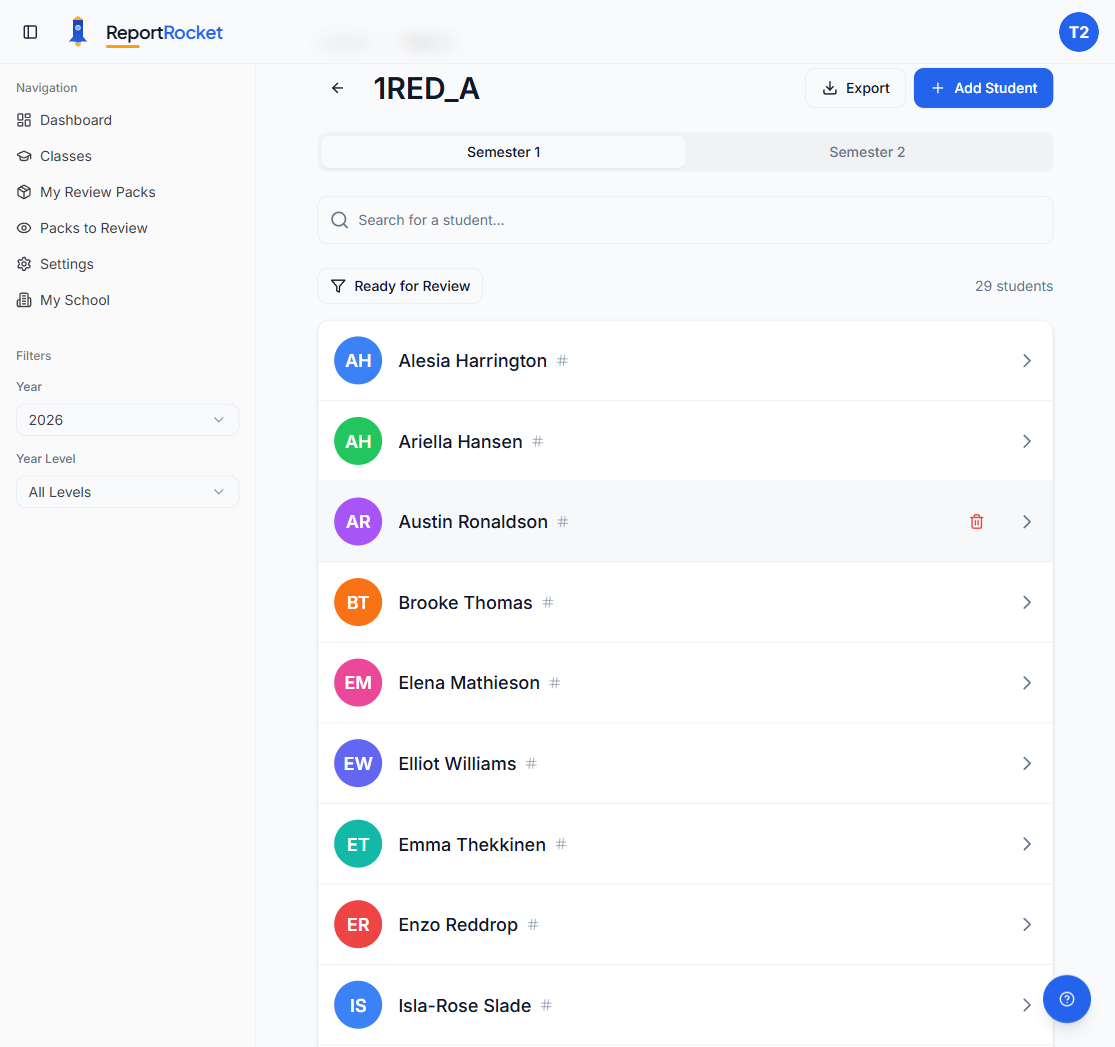
The semester selector appears at the top of each class's student list. Open a class from your Classes page, and you will see Semester 1 and Semester 2 tabs above the student list.
The Review Packs page also has a semester filter in the sidebar, so you can view packs from a specific semester.
Step 2: Click to Switch
Click the semester tab you want to view:
- Semester 1
- Semester 2
The page automatically defaults to the current semester based on the time of year (January to June = Semester 1, July to December = Semester 2).
Step 3: View That Semester's Data
The student list updates to show reports for the selected semester. Each student's report status reflects only that semester's work.
What Carries Over
When you switch semesters:
| Data | Behaviour |
|---|---|
| Classes | Carry over |
| Students | Carry over |
| Reports | Fresh start per semester |
| Settings | Carry over |
| Usage quota | Free: per semester; Pro: on renewal |
Why Separate Semesters?
- Clean slate — Start each semester fresh with new reports
- Historical access — Switch back to view old reports
- Usage tracking — Generation credits tracked per semester
- Reporting alignment — Matches school reporting cycles
Mid-Year Students
New Students
Add them in your current semester — they will be available going forward.
Transferred Students
Students who leave mid-year:
- Deactivate — Keeps records, hides from active lists
- Delete — Removes completely
Accessing Previous Semester Reports
- Open the class from your Classes page
- Click the Semester 1 or Semester 2 tab for the period you want
- Click a student to view their completed report
Reports are read-only in previous semesters — you cannot edit historical records.
Usage Reset
Your AI comment allocation varies by plan:
- Free tier: a one-time 10-comment trial for new accounts, which does not reset between semesters. Accounts created before early access ended on 1 August 2026 no longer receive a free allowance
- Teacher Pro: 100 comments per 6-month purchase window — resets on renewal, not on semester change
- School licence: Student quota per semester
Next Steps
Was this article helpful?