Creating Review Packs
Learn how to bundle student reports into a Review Pack for colleague review, assign reviewers, and track feedback progress through to completion.
What is a Review Pack?
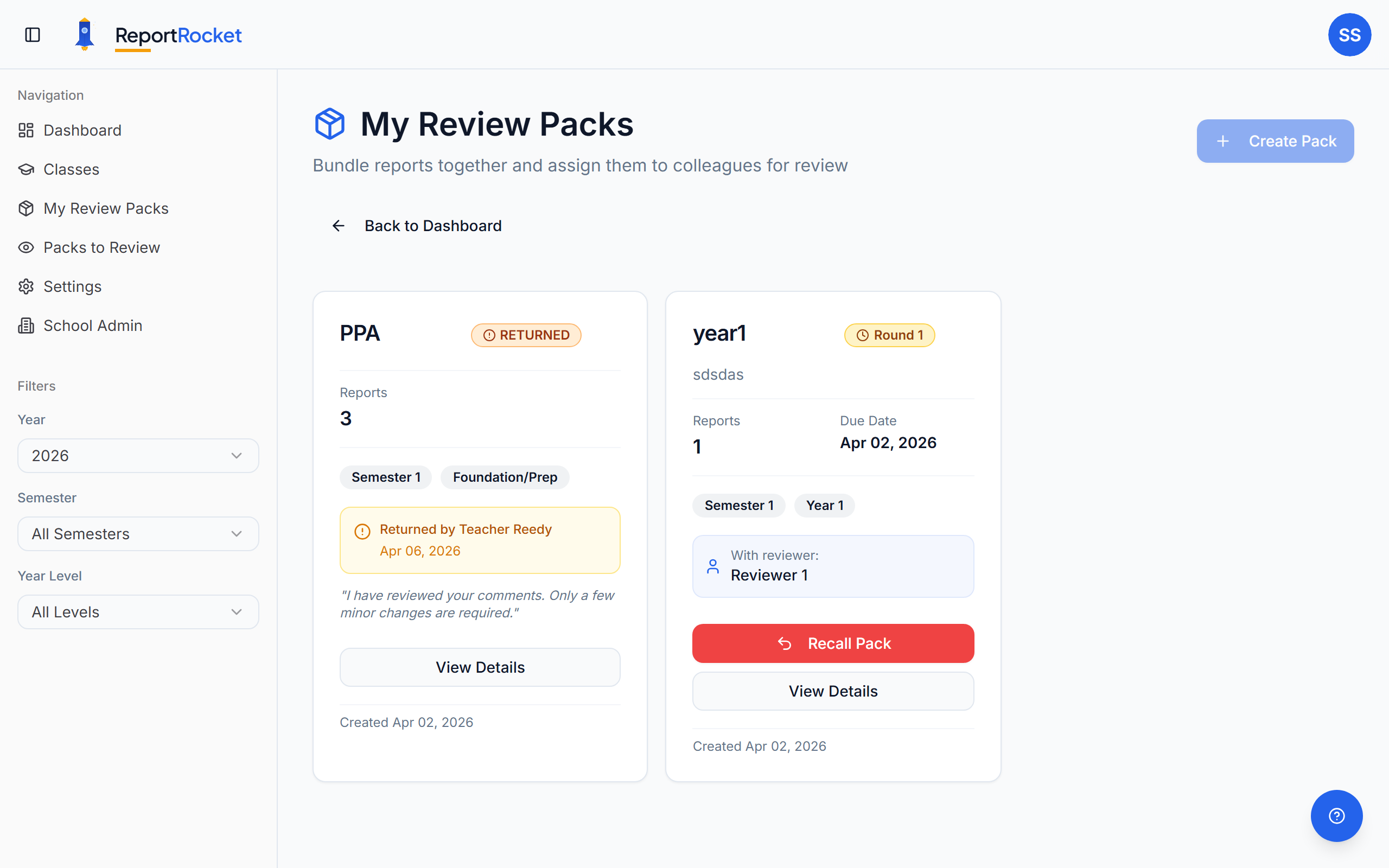
A Review Pack bundles multiple student reports together and sends them to a colleague for feedback. This streamlines the peer review process that many schools require.
Creating a Review Pack
1. Prepare Your Reports
Before creating a pack, ensure the reports you want reviewed are:
- Generated (have comments)
- Ready for feedback
- Marked appropriately
2. Navigate to Review Packs
Click Review Packs in the sidebar.
3. Click "Create Pack"
You'll see a dialog with options:
- Pack name – e.g., "Term 2 Week 8 Reports" or "3B English Reports"
- Select reports – Choose which student reports to include
- Assign reviewer – Select a colleague from your review team
4. Send for Review
Click "Send for Review" to notify your colleague.
Pack Statuses
| Status | Meaning |
|---|---|
| Draft | Pack created but not sent |
| In Review | With reviewer, awaiting feedback |
| Needs Changes | Returned to teacher with annotations |
| Approved | Reviewer approved all reports |
Each pack also tracks its review round (e.g. "Round 1", "Round 2") showing how many review cycles it has been through.
Managing Your Packs
View Pack Details
Click any pack to see:
- All included reports
- Current status
- Review history
- Annotations and feedback
Recall a Pack
Need to make urgent changes? Request a recall:
- Click "Recall Pack"
- Enter a reason
- Wait for reviewer to release it (or force recall if urgent)
Track Progress
Your dashboard shows:
- Packs pending review
- Packs with feedback ready
- Recently approved packs
Setting Up Your Review Team
Before creating packs, you need colleagues available as reviewers. There are two ways this works:
- School users: Any member of your school can be selected as a reviewer by default. If your admin has enabled Restrict Reviewers, only members with the Reviewer or Admin role will appear in the reviewer dropdown.
- Individual users: Add colleagues to your review team in Settings > Review Team by entering their email address. They'll appear as reviewer options when you create a pack.
Review History
Every pack keeps a complete record of every action taken against it. Open a pack and scroll to the Review History card to see:
- A timeline of every status change (sent for review, sent back for changes, recalled, resubmitted, approved)
- Pack-level comments left by reviewers at each step
- Who took each action and when
If a pack has been through multiple review rounds, the timeline shows them all in order with a coloured badge for each action type:
| Action | Meaning |
|---|---|
| Sent for Further Review | Pack handed off to the next reviewer in the chain |
| Sent Back for Changes | Reviewer returned the pack with annotations |
| Recalled | Teacher requested the pack back early |
| Force Recalled | Admin pulled the pack back without reviewer approval |
| Resubmitted | Teacher addressed feedback and sent the pack back to the reviewer |
| Marked as Complete | Teacher accepted the reviewer's feedback and closed the pack |
| Final Approved | Reviewer signed off on the final version |
Review History is the audit trail for the pack. Use it for professional development conversations, to remember why a pack was returned, or to settle "did anyone ever look at this?" questions.
Next Steps
Was this article helpful?