Reviewing Reports as a Colleague
Review an assigned pack: annotate inline, run the reviewer's own Check comment, then send it back, approve it, or pass it on.
Your Role as a Reviewer
When a colleague assigns you a Review Pack, you are helping make sure their comments are clear, accurate and ready for families to read.
Your job is to flag things, not to fix them. Everything you mark goes back to the teacher, who decides what to change. ReportRocket deliberately gives you no editing or rewriting tools, so a comment is never quietly changed out from under the person who wrote it.
Finding Your Packs
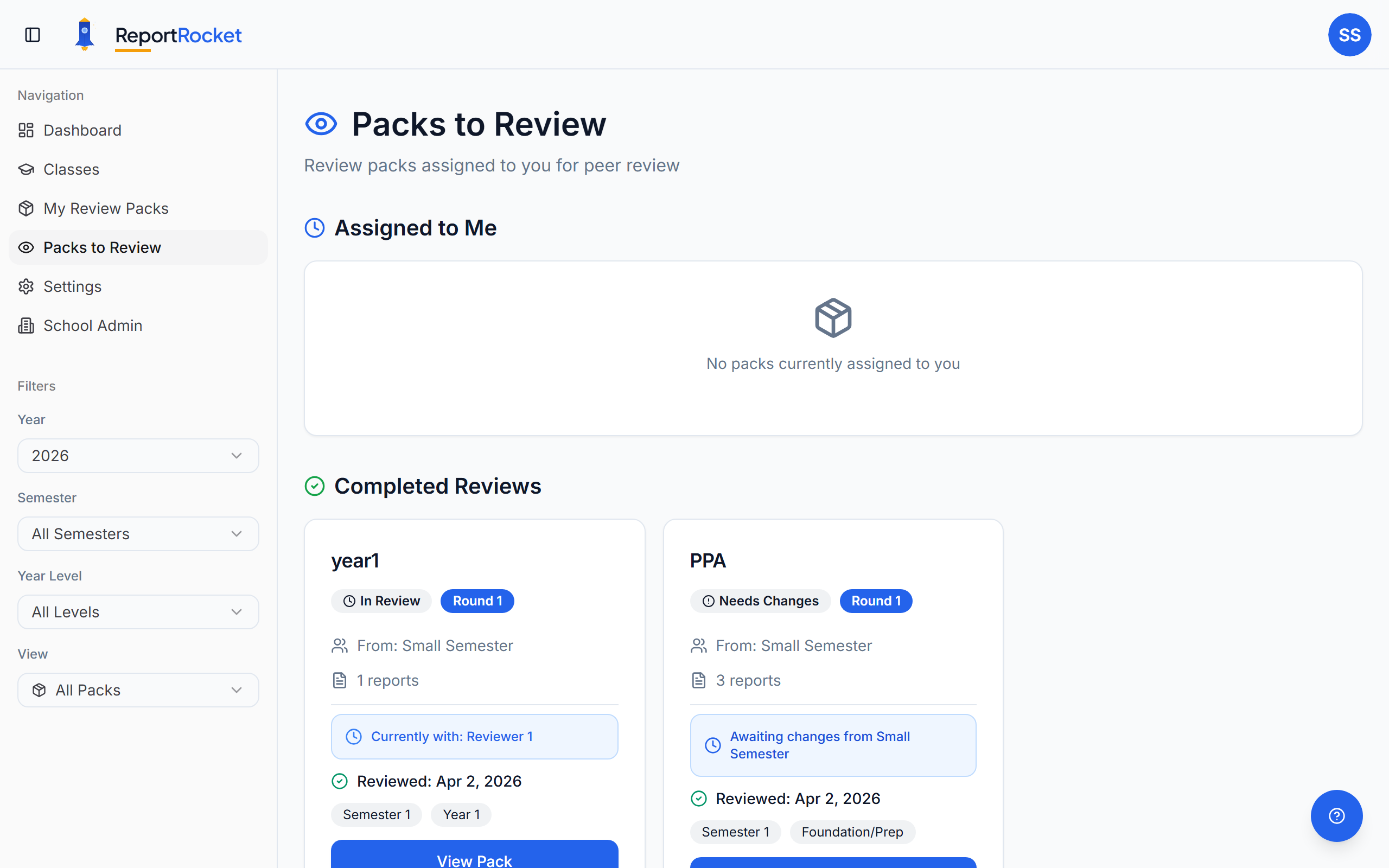
Click Packs to Review in the sidebar. Packs waiting on you appear under Assigned to Me. The page shows the current semester by default, so use Show all semesters if you are looking for something older.
Reviewing a Report
Open the pack and work through the students one at a time. For each comment, read it against the things a reviewer is best placed to catch: does it make sense, does it say something specific about this student, does it sound like your school.
Adding an Annotation
Select the text you want to comment on. A small panel opens where you choose a category, write your note, and click Add Annotation.
| Category | When to use it |
|---|---|
| Clarity | The meaning is unclear or confusing |
| Specificity | Too vague, needs a concrete example |
| Spelling | A misspelling |
| Grammar | Punctuation or grammatical errors |
| Repetition | A word or phrase used too often |
| Words to avoid | Wording your school's style guide rules out |
| S1 overlap | Phrasing that repeats the student's Semester 1 comment |
| Positive | Something worth keeping, so it does not get edited away |
| Suggestion | An alternative worth considering |
| General | Anything else |
Suggesting a Better Word
When you select a short phrase, a Suggest synonyms button appears in the annotation panel. Click it and ReportRocket offers alternatives that fit the sentence and respect your school's list of words to avoid. Picking one drops it into your note, and adding the annotation is still your call.
Writing Annotations That Get Acted On
The teacher's side turns your notes into one-click actions, and the wording you use decides how well that works. A note that contains the replacement wording can be applied directly. A note that only describes the problem cannot.
- Less useful: "Fix this"
- More useful: "the reading strategy she improved in"
- Less useful: "Wrong"
- More useful: "their, not there"
Editing an Annotation
Each annotation card carries two small icons. The copy icon puts the highlighted text on your clipboard, handy for quoting the original in a message. The pencil icon reopens the annotation so you can rewrite the note or change its category. Click the pencil, make your changes, then click the green tick to save or the X to cancel.
Check Comment
Each report has a Check comment button, which runs the same checks the teacher's own workspace runs: spelling and grammar, repetition, words your school avoids, overlap with the student's Semester 1 comment, and length.
The reviewer version works differently to the teacher's in one important way. The comment is read-only, and there are no rewrite tools. Instead, each finding has a tick box. Tick the ones worth raising, then click the button that appears (Add 3 as annotations, and so on) to send them to the teacher, landing exactly where the issue sits in the comment.
Use the filter above the results to turn individual checks on or off. Findings that duplicate an annotation you have already added are dropped automatically, so you will not send the same point twice.
Per-Report Feedback
Under each comment there is a general feedback box for that student. Use it for things that are not tied to a specific phrase, such as an overall observation about tone or a point the comment has missed entirely.
Marking Progress
As you finish each report, click Mark as Reviewed. The arrow beside that button marks the report reviewed and opens the next student in one go, which is the fastest way through a pack.
Finishing the Pack
The Pack Summary section holds three things: the Review History timeline showing every round the pack has been through and who did what, the Overall Comments box, and your review actions.
Overall comments are required when you send a pack back. This is where you explain the pattern behind your annotations rather than repeating them.
Then choose an action:
| Action | What it does |
|---|---|
| Send Back for Changes | Returns the pack to the teacher with all your annotations and feedback. Requires overall comments. The pack becomes read-only for you. |
| Further Review | Passes the pack to a second-level reviewer, for schools that use multi-level review. Your feedback stays visible to help guide them. |
| Final Approval | Signs the pack off as complete. No further reviewer action is needed. |
All three actions run a check first. If any reports are not yet marked as reviewed, ReportRocket lists them and offers Mark All as Reviewed so you can confirm you have looked at everything before the pack leaves your hands.
If a Teacher Needs Their Pack Back
A teacher can recall a pack while it is still with you, but only until you open it. Once you have opened it, recall is blocked to protect the feedback you have started, and the teacher will ask you to send it back instead. Use Send Back for Changes as normal and your work goes with it.
If a pack disappears from your list before you opened it, that is a recall. You will get an email letting you know.
Tips for Reviewers
- Be timely. Your colleague is waiting, often close to a deadline.
- Be specific. Give the wording you would use, not a description of what is wrong.
- Flag the good bits too. A Positive annotation stops something strong being edited out.
- Run Check comment early. It clears the mechanical issues quickly and leaves you free to think about the writing.
Next Steps
Was this article helpful?